Photoshop vs Canva: The Complete Guide to Choosing Your Perfect Design Tool



Photoshop vs Canva: The Complete Guide to Choosing Your Perfect Design Tool
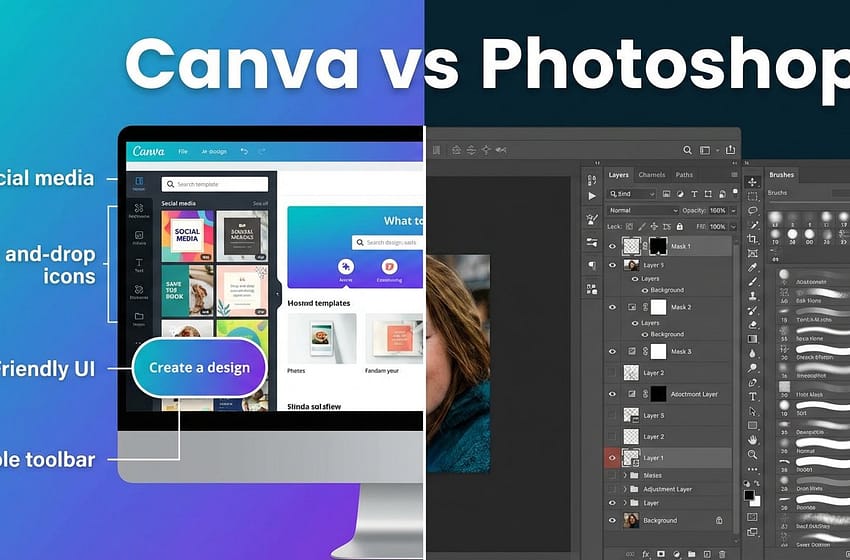
Choosing the right design tool can feel overwhelming, especially when you’re standing at the crossroads between two completely different philosophies. On one side, you have Adobe Photoshop—the industry titan that’s been the backbone of professional design for over three decades. On the other, there’s Canva—the friendly newcomer that’s democratized design by making it accessible to literally anyone with an internet connection.
But here’s the thing: this isn’t really a battle between good and bad. It’s more like comparing a Swiss Army knife to a full mechanic’s workshop. Both have their place, and the “better” choice depends entirely on who you are, what you’re creating, and where you’re headed with your design journey.
Let’s break down everything you need to know to make the right decision.
Understanding What Each Tool Actually Is
Before we dive into comparisons, it’s worth understanding what these tools were designed to do.
Photoshop was born in 1988 as a photo editing powerhouse. Over the years, it evolved into a complete digital imaging toolkit used by professional photographers, graphic designers, digital artists, and basically anyone who needs pixel-perfect control over visual content. It’s desktop software (though there’s now a web version) that requires installation and runs locally on your computer with serious processing power.
Canva launched in 2013 with a radically different mission: make design simple enough that anyone could create professional-looking graphics without years of training. It’s a browser-based platform (with mobile apps) built around templates, drag-and-drop simplicity, and collaborative features. Think of it as design made accessible rather than design made powerful.
The Beginner Experience: Where Canva Absolutely Dominates
If you’re just starting your design journey, Canva offers an experience that’s honestly hard to beat.
The moment you log into Canva, you’re greeted with thousands of pre-made templates for virtually everything—Instagram posts, business cards, presentations, YouTube thumbnails, resumes, you name it. These aren’t just blank canvases with suggested dimensions; they’re professionally designed starting points created by actual designers. You can literally create something decent-looking in under five minutes, even if you’ve never touched design software before.
The interface is intentionally simple. Drag a photo onto the canvas. Click text to edit it. Change colors with a single click. Resize elements by dragging corners. There’s no confusing layer palette, no overwhelming toolbar with 50 icons you don’t understand, and no need to watch a 30-minute tutorial just to figure out how to export your file.
Canva also handles the technical stuff automatically. Need the right dimensions for an Instagram story? There’s a template for that. Want to ensure your design works across different platforms? Canva’s magic resize feature can adapt your design to multiple formats instantly. For beginners who just want to create something that looks good without understanding color theory, typography principles, or composition rules, this is genuinely life-changing.
The free version is surprisingly generous too. You get access to thousands of templates, photos, graphics, and fonts without paying a cent. Canva Pro ($15/month for individuals) unlocks even more resources, including the ability to remove backgrounds, access premium stock photos, and use brand kit features that maintain consistency across all your designs.
Where Photoshop Shows Its True Power
Now, let’s talk about why professionals still swear by Photoshop despite Canva’s convenience.
Photoshop gives you control at a level that Canva simply cannot match. When you’re working with layers, masks, channels, and adjustment layers, you’re not just moving elements around—you’re surgically manipulating every single pixel of your image with non-destructive editing techniques that preserve your original files.
Need to remove a person from a beach photo while maintaining realistic shadows and lighting? Photoshop’s content-aware fill and clone stamp tools make this possible. Want to create a composite image by blending multiple photos seamlessly? Layer masks, blending modes, and advanced selection tools give you that precision. Looking to retouch portrait photos with magazine-quality results? Frequency separation, dodge and burn techniques, and fine-tuned color grading deliver professional results.
The depth of Photoshop’s feature set is staggering. You can create complex digital paintings, design intricate photo manipulations, build detailed textures, perform advanced color correction, work with RAW photo files, design user interfaces, create animations, and produce print-ready artwork with CMYK color profiles and proper bleed settings.
For professional work—especially in photography, advertising, publishing, and high-end digital art—Photoshop remains the industry standard because it delivers precision and flexibility that template-based tools simply can’t replicate.
The learning curve, however, is real. Photoshop doesn’t hold your hand. The interface is dense, packed with tools and options that take time to understand. You’ll need to invest hours learning keyboard shortcuts, understanding how layers work, grasping color spaces, and figuring out the difference between raster and vector graphics. But once you climb that learning curve, you have capabilities that feel almost limitless.
Photoshop costs $22.99/month for a standalone subscription or $59.99/month as part of Adobe Creative Cloud All Apps, which includes Illustrator, InDesign, Premiere Pro, and the entire Adobe suite.
The Honest Pros and Cons
Canva Pros:
- Extremely beginner-friendly with minimal learning curve
- Thousands of professional templates across every category
- Browser-based, works on any device without installation
- Collaborative features for team projects
- Affordable pricing with generous free tier
- Automatic sizing and format optimization
- Integrated stock photo and graphic libraries
- Perfect for social media content, presentations, and marketing materials
Canva Cons:
- Limited fine control over individual elements
- Cannot handle advanced photo editing or retouching
- Template-dependent design can feel generic
- File export options are more limited
- Not suitable for print design requiring precise color management
- Lacks advanced features like layer masks and channels
- Internet connection required for full functionality
- Can produce similar-looking designs if relying heavily on templates
Photoshop Pros:
- Industry-standard tool with unmatched professional capabilities
- Pixel-perfect control over every aspect of your design
- Advanced photo editing, retouching, and manipulation
- Non-destructive editing with layers and masks
- Supports professional color spaces (CMYK, LAB, etc.)
- Extensive plugin ecosystem
- Works offline once installed
- Unlimited creative possibilities for skilled users
Photoshop Cons:
- Steep learning curve requiring significant time investment
- Expensive subscription cost
- Requires powerful computer hardware
- Overwhelming interface for beginners
- No built-in templates or design assistance
- Not optimized for quick social media content creation
- Overkill for simple design tasks
- Desktop-focused (web version has limited features)
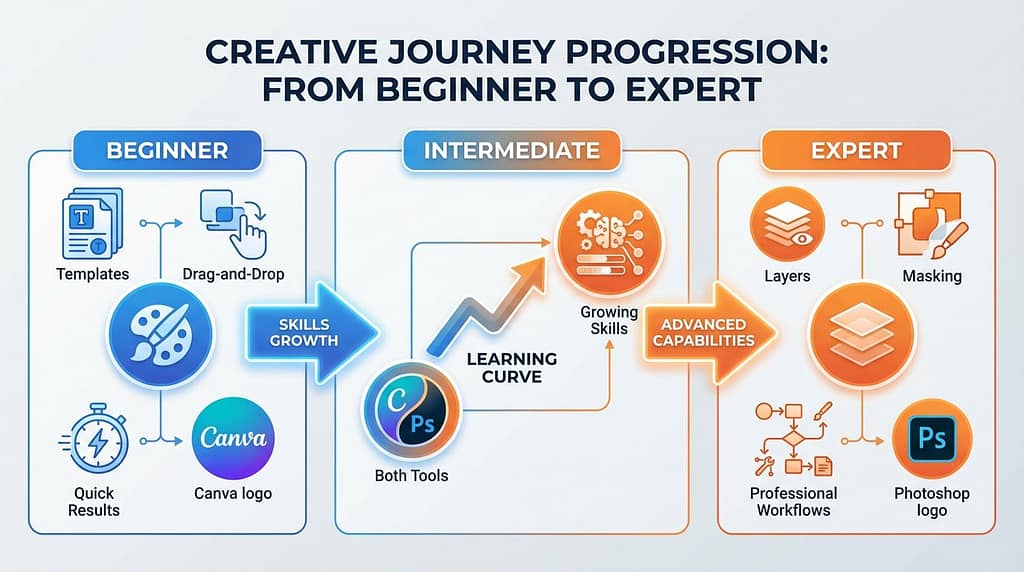
Expert Level: When You’ve Outgrown the Basics
Here’s where things get interesting. What happens when you’ve mastered the basics and want to level up?
For Canva users, you’ll eventually hit a ceiling. You might find yourself frustrated that you can’t make micro-adjustments to spacing, that certain effects aren’t possible, or that your designs are starting to look similar to everyone else’s. This is when many designers start exploring Photoshop or other professional tools.
However, Canva has been steadily adding more advanced features. The recent integration of Affinity Designer tools (which Canva acquired) brings vector editing capabilities that were previously missing. Features like background removal, magic eraser, and smart mockups have made Canva increasingly capable for intermediate users.
For Photoshop users, the progression is different. As you advance, you discover deeper layers of capability—advanced compositing techniques, sophisticated color grading workflows, custom actions and batch processing, integration with other Creative Cloud apps, and eventually mastery of features that even veteran users are still discovering.
The real experts often use both tools strategically. Photoshop for heavy-lifting photo work and complex compositions, Canva for quick social media content and presentations. There’s no rule saying you must choose only one.
What’s Best for Artists and Designers?
This is where we need to get specific about your actual goals.
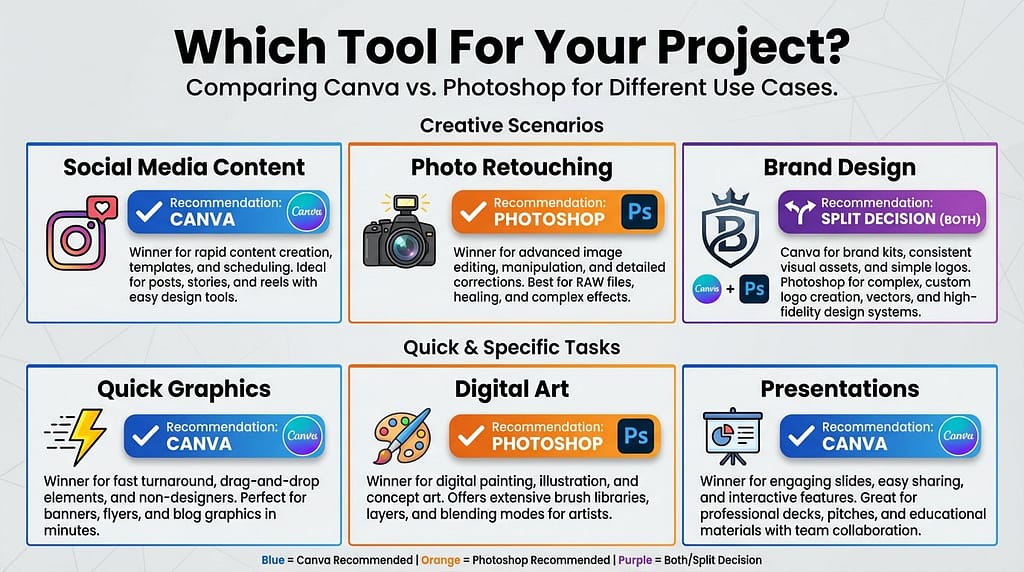
If you’re a graphic designer working on branding, social media content, presentations, or marketing materials without heavy photo manipulation needs, Canva can handle 80% of your daily work efficiently. The time savings alone often justify it, especially if you’re working with clients who need fast turnarounds.
If you’re a photographer or visual artist focused on fine art, portraiture, or any work requiring detailed retouching and color correction, Photoshop is non-negotiable. The level of control you need simply doesn’t exist in simpler tools.
If you’re an illustrator, neither tool is perfect—you’d probably want Adobe Illustrator or Procreate instead. But between the two, Photoshop’s brush engine and painting tools offer more for digital illustration.
If you’re a content creator making YouTube thumbnails, Instagram graphics, or TikTok assets, Canva’s speed and template library will save you countless hours. The ability to quickly test multiple design variations is invaluable for content that needs to perform algorithmically.
If you’re a student or hobbyist exploring design, start with Canva to learn fundamental principles without getting overwhelmed. Once you understand composition, color theory, and typography basics, transition to Photoshop if you want professional-grade capabilities.
The Bottom Line
There’s no universal “better” choice here. Canva excels at making design accessible, fast, and collaborative—perfect for beginners, content creators, and anyone who values efficiency over absolute control. Photoshop delivers unmatched power and precision for professionals who need pixel-perfect results and aren’t afraid to invest time mastering complex tools.
The smartest approach? Understand what each tool does best and use the right one for the job. Create your social media graphics in Canva, edit your portrait photos in Photoshop. Design your presentation slides in Canva, build your detailed photo composites in Photoshop.
In 2026, we’re fortunate to have both options available. The real question isn’t which tool is objectively better—it’s which tool matches where you are right now in your creative journey and what you’re actually trying to accomplish. Answer that honestly, and the choice becomes surprisingly clear.